Reading Time: 7 Minutes
Why Your Phone Is Designed to Hijack Your Attention
Before we talk about fixing your phone, let’s be clear about what we’re up against. The average smartphone is not a neutral tool. It’s a $1,000 attention-extraction device engineered by thousands of the world’s best-paid designers, behavioral psychologists, and machine-learning engineers to keep you looking at it for as many minutes per day as possible.
Quick Summary
- Key insight from this article summarized in one clear bullet point for quick readers
- Another important takeaway that captures the core message of the content
- A third essential point that gives the reader immediate value before diving deeper
- A final actionable insight that helps the reader understand what they will learn
Tristan Harris, a former Google design ethicist, calls this “a race to the bottom of the brain stem.” The notifications, the colors, the variable rewards, none of it is accidental. Every red badge, every pull-to-refresh animation, every autoplay video is a deliberate choice made in an A/B testing framework with one metric: time on screen.
But here’s the good news: almost every exploitative design can be neutralized. Your phone’s default settings are the problem. Change the settings, and you change the relationship. This guide walks through every step, from grayscale to app layout to notification architecture, to transform your phone from a trap into a tool.
Step 1: Grayscale Mode, The Single Most Effective Change
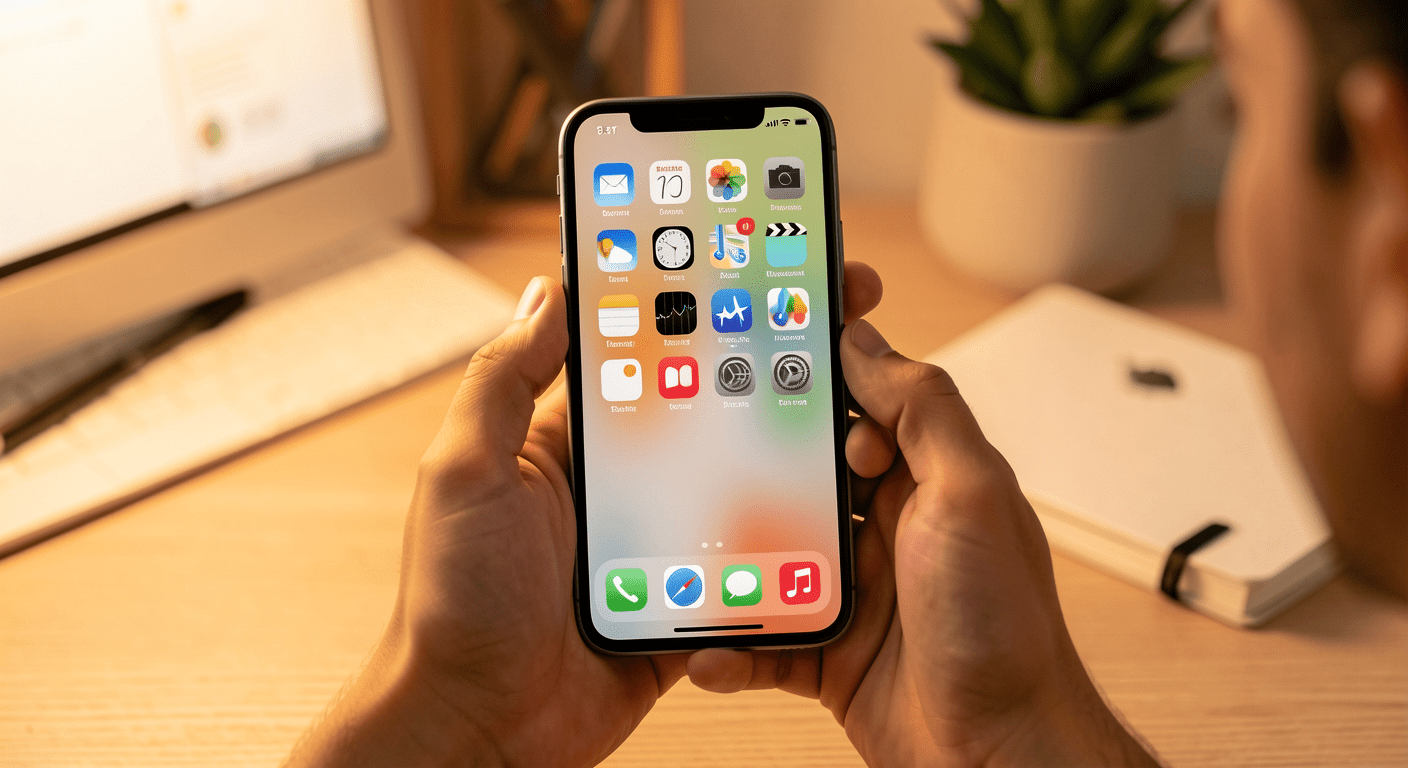
Color is emotional salience. App icons are designed in specific hues, red for urgency (notifications), blue for trust (productivity), yellow-orange for warmth (social media), because color triggers the limbic system faster than conscious thought. Remove color, and you remove a major layer of the phone’s attentional pull.
How to Enable Grayscale
iPhone: Settings → Accessibility → Display & Text Size → Color Filters → toggle ON → select Grayscale. Bonus: set up the Accessibility Shortcut (triple-click side button) to toggle grayscale on and off. This lets you switch to color temporarily for photos or maps, then revert immediately.
Android: Settings → Accessibility → Visibility Enhancements → Color Correction → select Grayscale. On Samsung devices: Settings → Accessibility → Visibility Enhancements → Color Adjustment → Grayscale. Some Android skins include a Developer Options shortcut, enable Developer Options (tap Build Number 7 times), then search for “Simulate color space” and set to “Monochromacy.”
The first 24 hours in grayscale feel strange. Your phone looks broken. That’s the point. By day three, most people report that their phone feels “quieter” in a way that’s hard to describe, less magnetic, less demanding. Research backs this up: a 2023 study in Cyberpsychology, Behavior, and Social Networking found that participants using grayscale mode reduced daily screen time by an average of 38 minutes without any other intervention.
Step 2: Notification Architecture, The Art of Saying No
Notifications are the primary vector through which your phone interrupts your life. The default setting, every app can ping you at any time, with sound, with vibration, with a banner, with a badge, is absurd when you step back and look at it.
The Notification Triage System
Open your notification settings and sort every app into one of three categories:
Tier 1, Pass Through (sound + banner): Calls from contacts, messages from close family, calendar reminders you’ve deliberately set, and security alerts (bank fraud, home security). This should be 3-5 apps at most.
Tier 2, Silent Delivery (no sound, no banner, appears in Notification Center only): Everything you want to see but not be interrupted by. Work email, Slack, delivery notifications, news alerts. These collect silently and you check them on your schedule.
Tier 3, Off, Completely: Everything else. Every app that sends you marketing notifications, “engagement” reminders, “someone liked your post,” “check out what’s trending.” Turn them all off without hesitation. If the app is important, you’ll open it yourself.
Specific settings to toggle:
- Disable “Time Sensitive” notifications for all apps except genuinely urgent ones (iOS)
- Turn off notification badges (the red number circles) globally or per-app, they trigger completion anxiety
- Disable lock screen notifications for anything you don’t need to see before unlocking
- On Android: disable notification categories individually, most apps have 5-15 different notification types, and you usually only need one
Step 3: The Home Screen, Intentional Architecture

Your home screen is real estate, and the apps on it are tenants. Most people let every new app claim prime location by default. A phone-as-tool approach means being deliberate about what’s one tap away.
The One-Screen Rule
Reduce your home screen to a single page. If an app doesn’t fit, it doesn’t earn the spot. Your second and third pages should be empty or, better yet, removed entirely (iOS: long-press empty area → tap dots → uncheck extra pages. Android: pinch home screen → remove extra panels).
Organize the one page into zones:
Top row (thumb reach, right side): Communication tools, Phone, Messages, Signal/WhatsApp. These are what you’ll actually use on the go.
Middle zone: Tools, Maps, Calendar, Camera, Notes, weather. Things you open with a purpose.
Bottom row (dock): Exactly four apps maximum. Make them tools, not entertainment. Consider: Phone, Messages, Camera, and a to-do or calendar app. No social media, no browsers, no games.
Everything else: Lives in the App Library (iOS) or App Drawer (Android), accessible only by search. When you have to type to find Instagram, you open it deliberately rather than mindlessly.
Step 4: Friction by Design, Making Distraction Harder
The default phone experience is optimized for zero friction: face ID unlocks in milliseconds, your thumb knows exactly where TikTok lives, and the infinite-scroll feed loads before you’ve consciously decided to scroll. Flipping this means deliberately adding steps between impulse and action.
Practical Friction Layers
Delete, don’t log out: If you can’t trust yourself with an app, delete it entirely. Reinstalling takes 30 seconds, enough time for your prefrontal cortex to override your limbic system. Use the mobile website if you genuinely need access.
Screen Time / Digital Wellbeing limits: Set a 15-minute daily limit per distracting app. When the limit hits, the app locks. The key is: do NOT tap “ignore limit.” Let it lock. If 15 minutes sounds harsh, remember that’s 15 focused minutes per app, more than enough for intentional use.
Downtime / Focus Mode scheduling: Set a recurring schedule (e.g., 9 PM to 8 AM) where all non-essential apps are blocked. On iOS, this is Downtime in Screen Time. On Android, it’s Focus Mode or Bedtime Mode in Digital Wellbeing. This is your evening screen curfew, and it pairs perfectly with the sleep protocol in our companion article on screen time and sleep.
Physical friction: Charge your phone outside your bedroom. Buy an actual alarm clock. Keep your phone in a drawer or another room during focused work blocks. Physical distance works because it eliminates the possibility of checking, which quiets the craving entirely rather than forcing you to resist it.
Step 5: The Browser is Also a Trap
Safari and Chrome are not neutral windows to the internet. They’re gateways to the same attention economy, and they come with their own set of exploitative defaults. Fix the browser too:
- Set your default search engine to something privacy-respecting that doesn’t surface algorithmically inflammatory content (DuckDuckGo, Kagi)
- Install a content blocker (1Blocker on iOS, uBlock Origin on Firefox Android)
- Remove the browser from your home screen dock, move it to the App Library
- Bookmark only tools: calendar, email, banking, reference, not news sites or social platforms
The Setup Checklist: Do This Today
- Enable grayscale (and set up the triple-click shortcut)
- Audit every notification, move 90% to Tier 3 (off)
- Reduce your home screen to one page of intentional tools
- Set app limits for social media and entertainment (15 min each)
- Schedule Downtime/Focus Mode for 9 PM to 8 AM
- Delete at least one app you know you shouldn’t have
- Move your phone charger out of your bedroom
Your phone is a remarkably powerful tool, a map, a camera, a communication device, a knowledge portal. It’s also, by default, an attention parasite. These seven steps take about 20 minutes total and will give you back, conservatively, an hour per day of undivided attention. Start with grayscale. The rest can follow.